
Step 4: Create & Assign Tasks
Managing the paperwork for field experience happens in the Reports and Forms tab on your main dashboard.
Here, you create the Templates that your program will use. Once a Report or Form is created here, it acts as a master copy that can be reused and assigned to any cohort or individual moving forward.

Interface Overview
Your main management page will look like this:
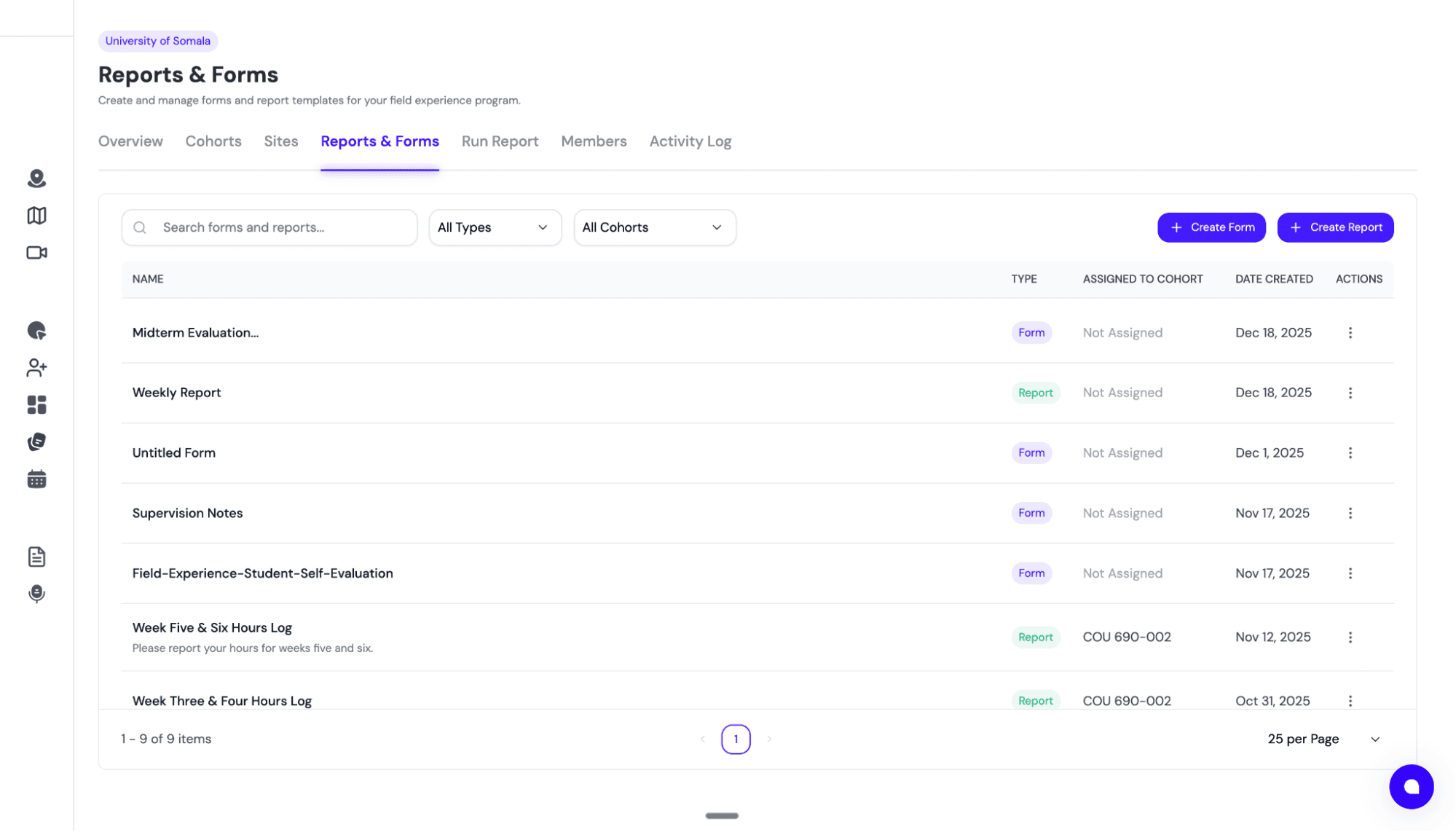
1. Reports: Managing Hour Logs & Signatures
In FieldX, a "Report" defines the schedule for logging hours. It tells the system when hours need to be submitted and who needs to sign them.
Creating a Report Template
Click Create Report to start building your template.
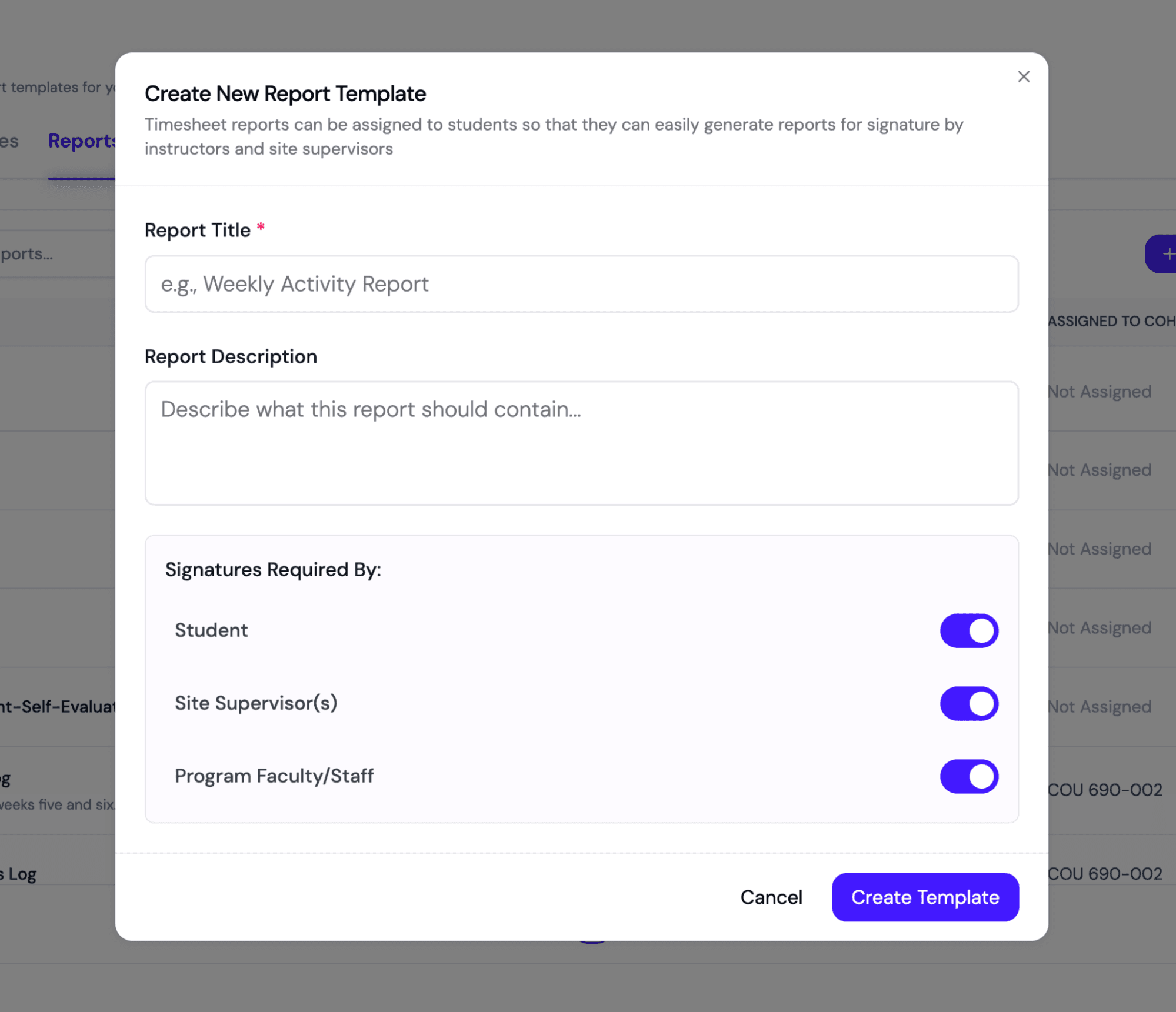
You will configure:
- Title & Description: Give it a clear name (e.g., "Weekly Hour Log" or "Month 1 Summary").
- Signature Workflow: Decide who needs to sign off on these hours. You can require signatures from the Student, Site Supervisor, and/or Faculty Supervisor.
💡 Pro Tip: While many programs require a student signature, FieldX allows you to remove this step if you only need supervisor approval.
Assigning a Report
Once your template is ready, you can assign it. This can be found by clicking the three dots on the right of the report you want to assign.
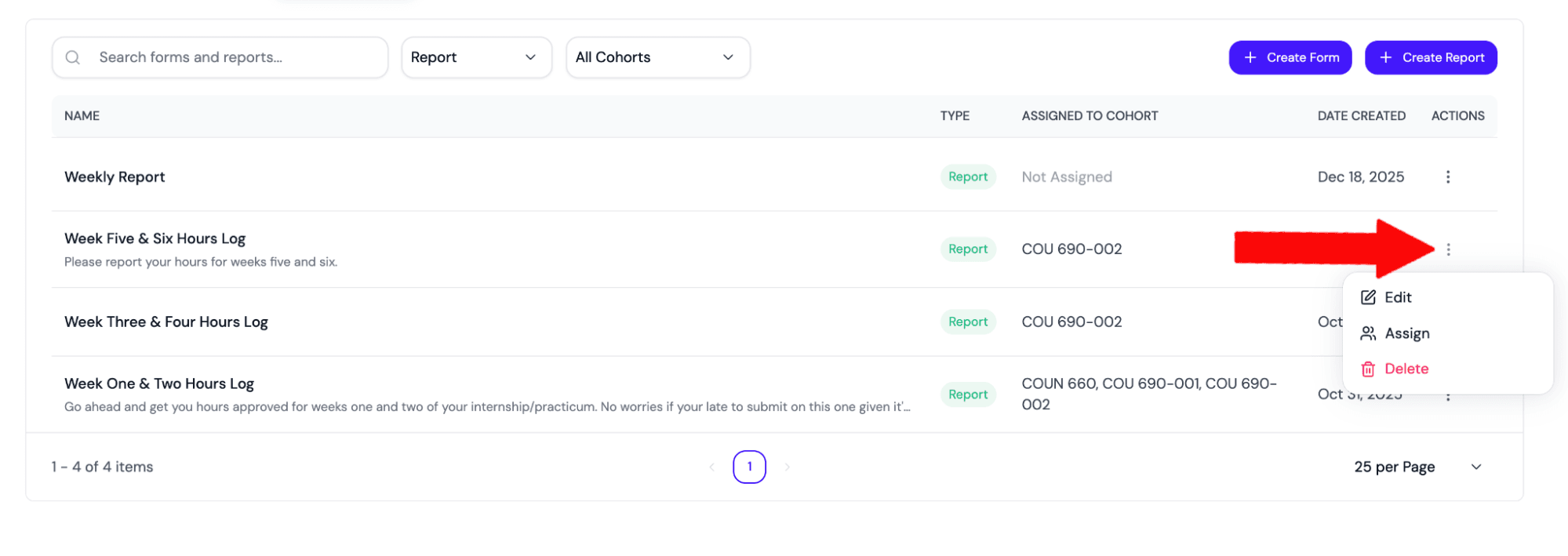
Once you click Assign, you will see a pop-up:
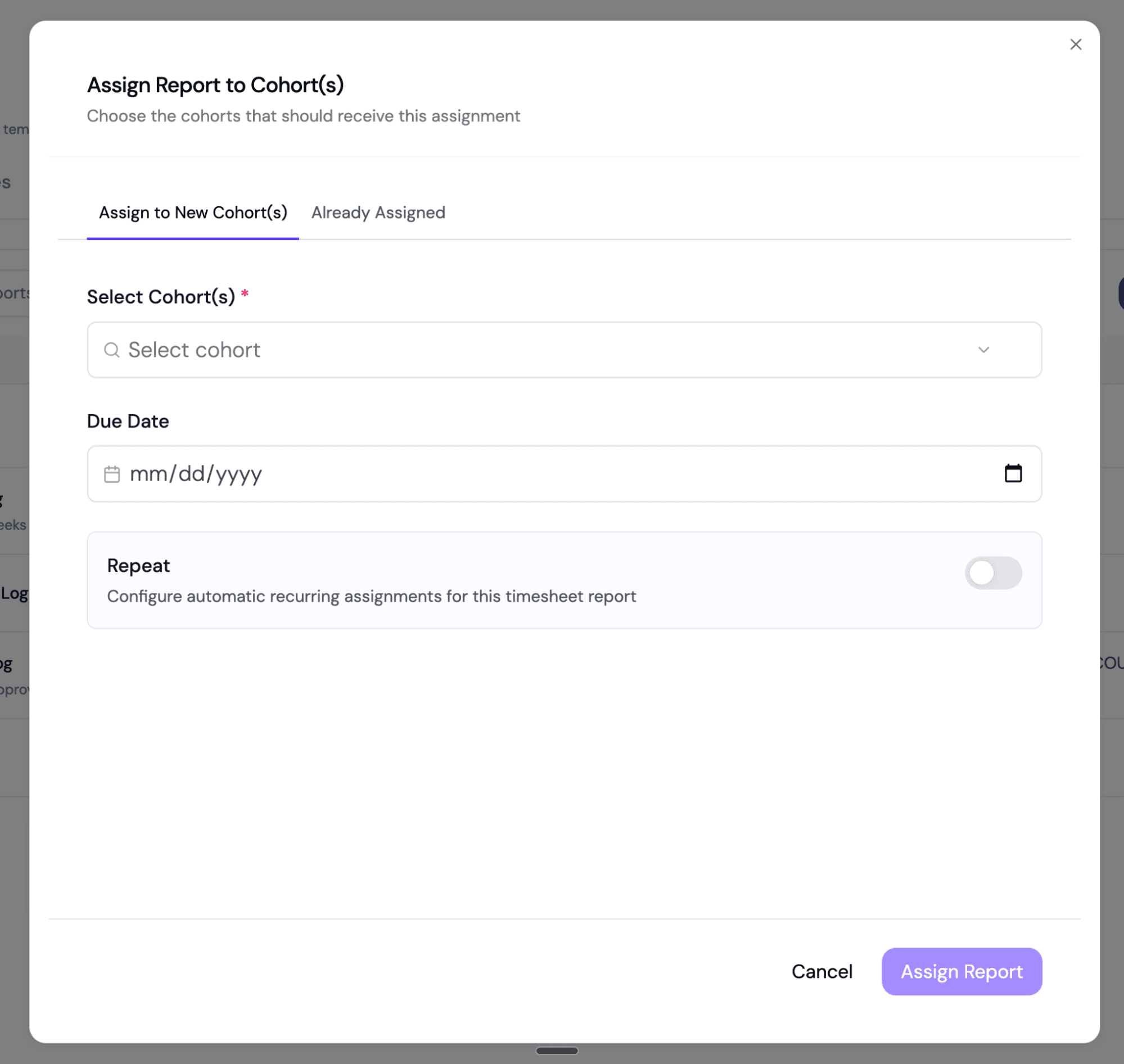
- Select Cohorts: Choose which cohorts need this report.
- Set Schedule: Choose a due date. You can also make this a Repeating Assignment (e.g., due every Friday) so you don't have to set it up manually each week.
2. Forms: Evaluations & Surveys
Forms in FieldX function similarly to tools like Google Forms, but they are built specifically for field experience management and are fully HIPAA compliant.
Creating a Form
You have two powerful ways to build a form:
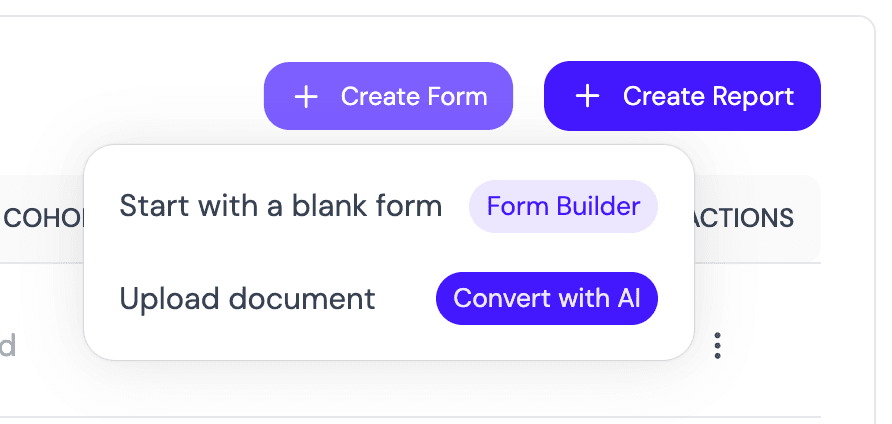
- Create from Scratch: Click Create Form to build a standard form using drag-and-drop fields.
- AI Import: Upload an existing PDF or Word document (like your current Mid-Term Evaluation), and our AI will automatically convert it into a digital FieldX form for you.
Assigning a Form
Forms offer more flexible assignment options than Reports:
- Assign to Groups: Send a form to an entire Cohort.
- Assign to Individuals: You can assign forms to specific Students, Faculty, or even Site Supervisors. This is perfect for targeted tasks like specific Mid-Term Evaluations.
Form Settings
- Repeating: Like reports, forms can be set to recur on a schedule.
- Edit Responses: You can toggle whether a user is allowed to edit their response after hitting submit.
For details on creating complex forms, see Building Forms. For recurring assignments, see Setting Up Recurring Tasks.