
Building Forms
FieldX includes a robust form builder that allows you to create custom evaluations, surveys, and agreements from scratch. This tool is fully HIPAA compliant and designed specifically for field experience workflows.
Creating a New Form
To begin, navigate to the Reports and Forms tab and click Create Form. Select Create from Scratch to open the builder.
The Form Builder
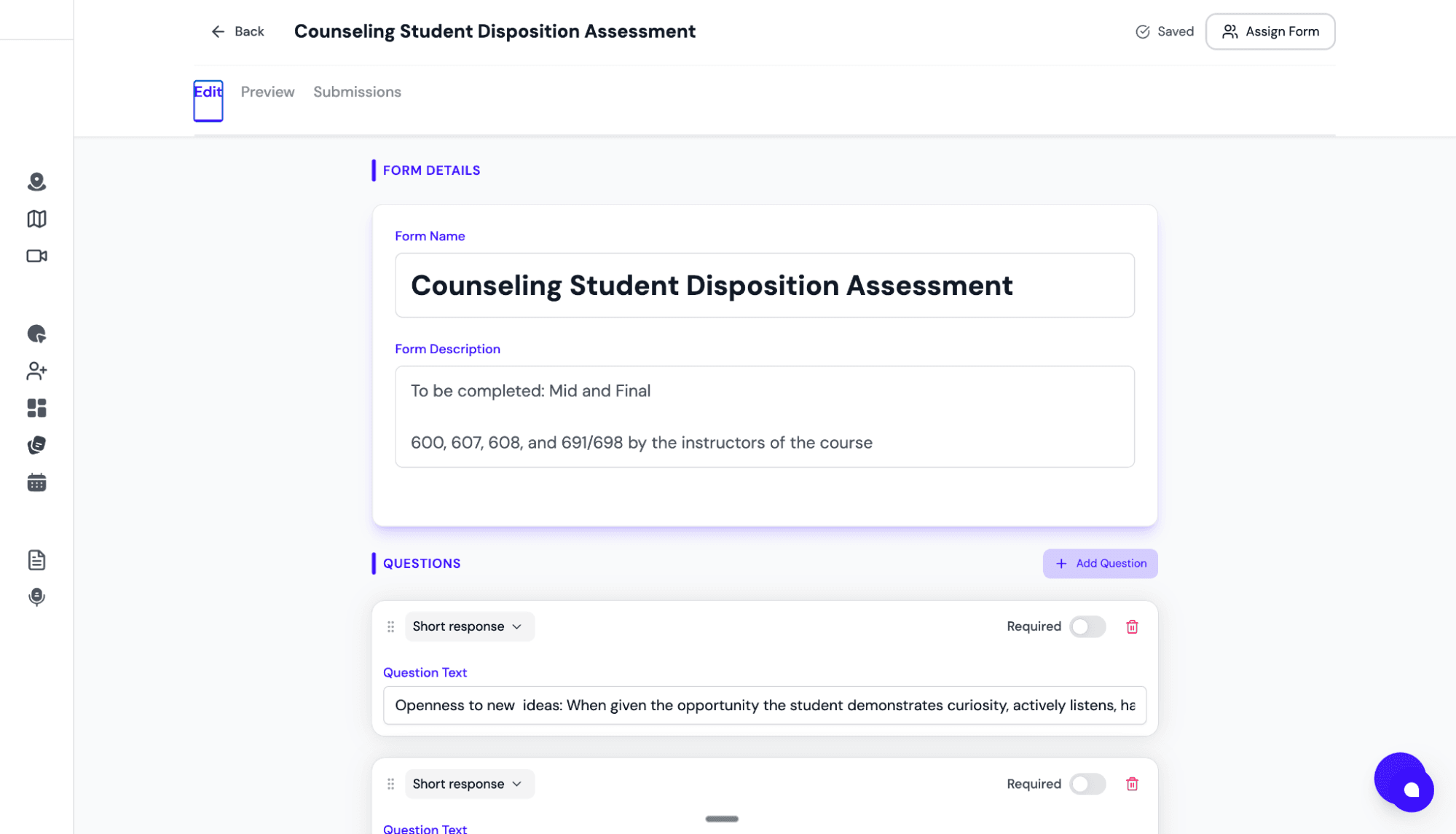
The builder interface is intuitive and flexible. On the left, you have your form canvas; on the right, you have your toolbox of field types.
Available Field Options
You can drag and drop a wide variety of elements to construct your form:
- Standard Fields:Text inputs (short answer), Text Areas (paragraphs), Checkboxes, and Radio Buttons.
- Signatures:Add signature fields for Students, Site Supervisors, or Faculty.
- Rating Scales:Likert scales or custom rating matrices for performance evaluations.
- Date & Time:Date pickers and time log entries.
- File Uploads:Allow users to attach external documents or PDFs directly to the form.
- Section Headers:Organize long forms with clear headings and dividers.
Form Properties
Once your fields are in place, you can click on any specific element to customize its properties, such as:
- Making a field Required.
- Adding help text or instructions.
- Setting character limits.
Once you save your form, it becomes a template that can be assigned to any cohort or individual user.
📚 Related: Once you've built forms, learn how to assign them to students in Step 4: Create & Assign Tasks.