
Step 3: Set Up Cohorts
Cohorts are the primary way to organize students into groups, such as class sections or academic tracks. This allows for streamlined management of assignments and supervisor oversight.

Creating a New Cohort
To get started, navigate to the Cohorts tab on the sidebar and select Create Cohort.
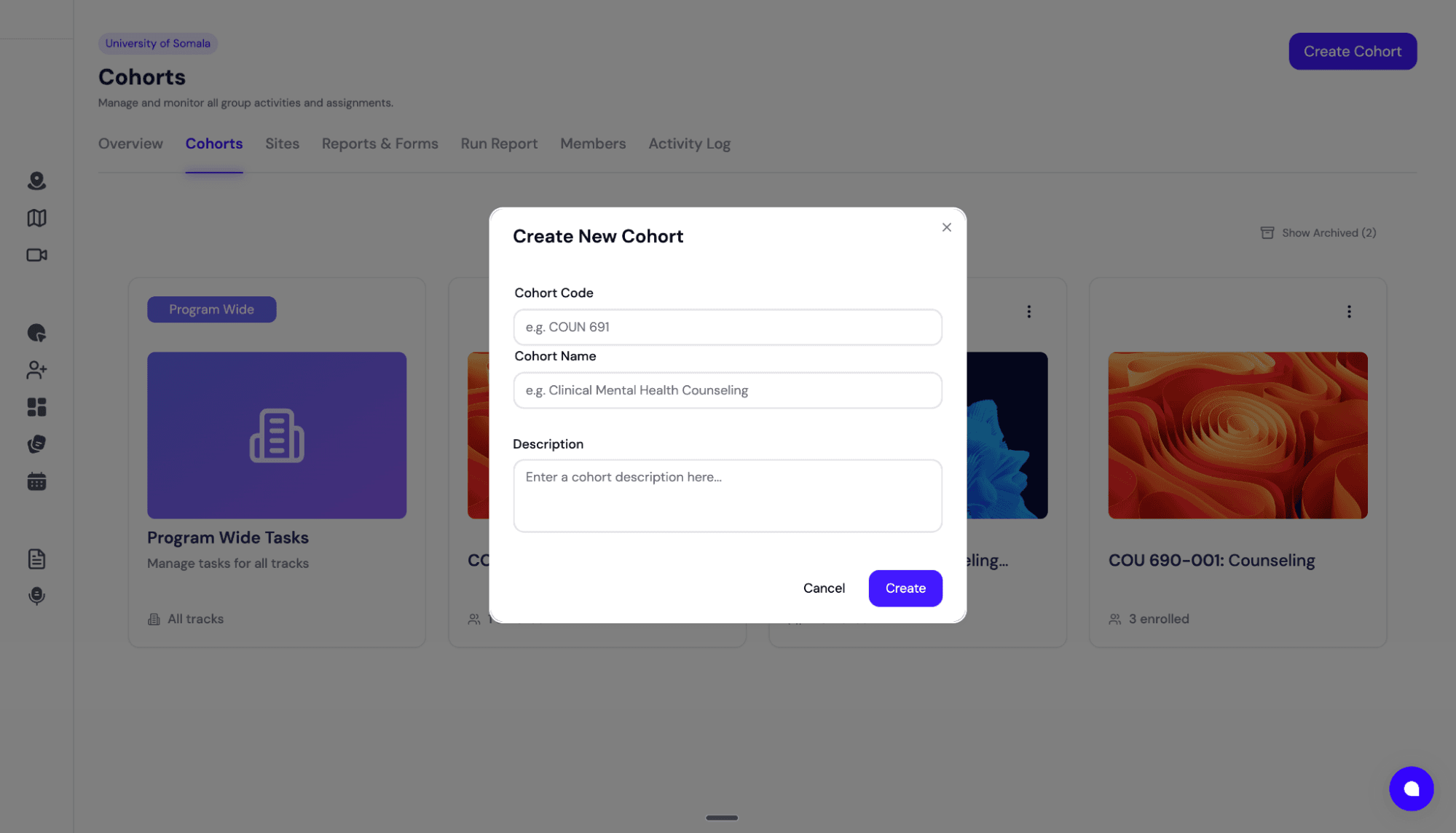
When creating a cohort, you will be asked to provide:
- Code: A unique identifier (e.g., SW-101-A).
- Name: A descriptive name for the group.
- Description: (Optional) Additional context or notes for the cohort.
Inside the Cohort View
When you click into a specific cohort, you will see a dashboard dedicated to that group. This provides a focused view of student progress and specific tasks.
Important Note: As a Program Coordinator, your main dashboard shows Program-Wide Tasks. Cohort-specific tasks (like grading a specific assignment for this class) are generally handled by the Faculty Supervisor assigned to this cohort.
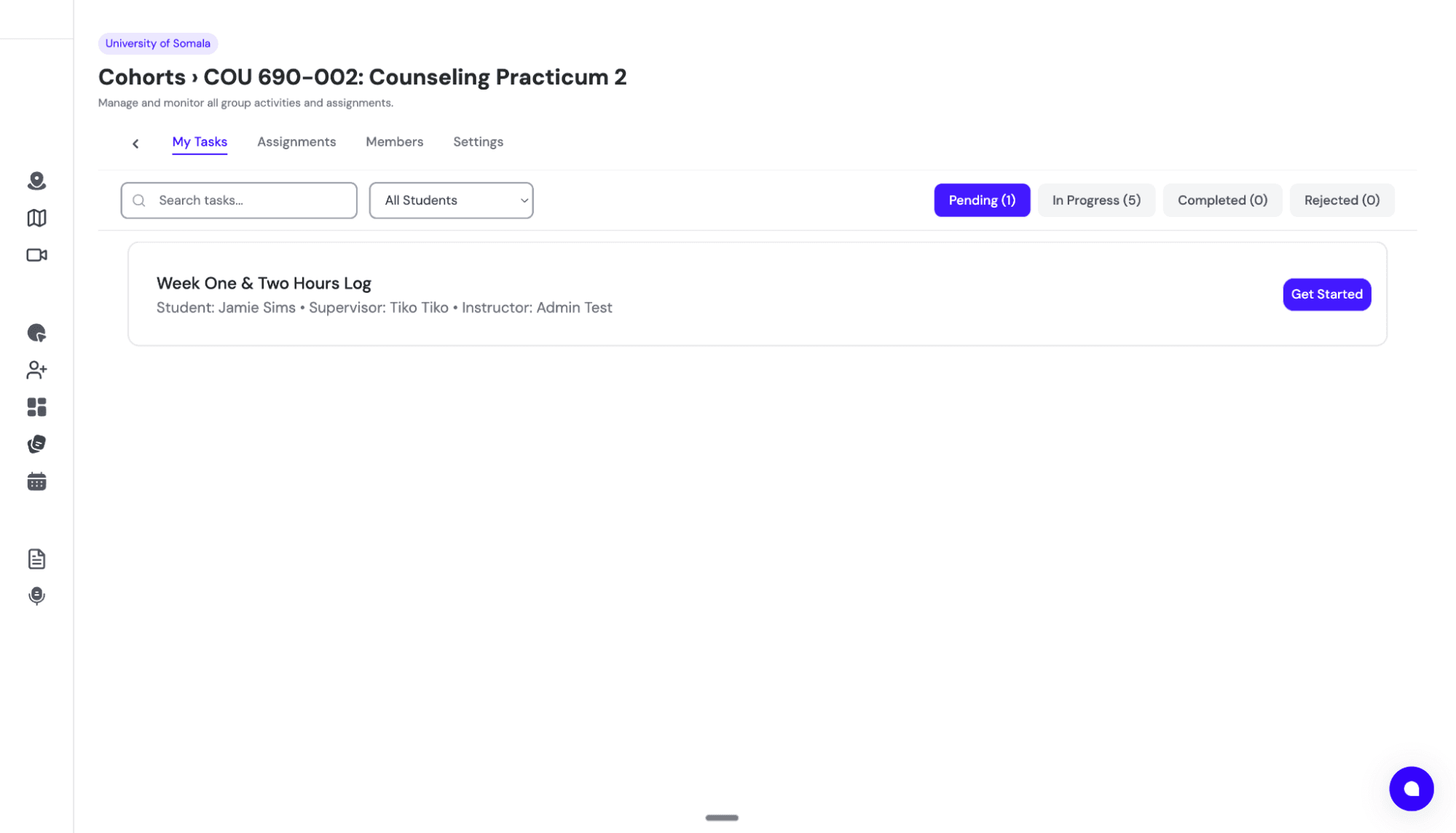
Cohort Dashboard Tabs
Here is a breakdown of the tabs available within each cohort:
- My Tasks:Shows tasks and oversight specific to this group.
- Assignments:View, create, and assign forms or reports specific to this group of students.
- Members:View the list of students and faculty currently in this cohort. You can add or remove members manually here if needed.
- Settings:Manage the cohort name, term, and view the Cohort Code for student self-registration.
Archiving a Cohort
When a term ends, you don't need to delete the cohort or its data. Instead, you should Archive the cohort.
- Go to the Settings tab within the cohort.
- Select Archive Cohort.
This removes the cohort from your active dashboard but preserves all student data, hours, and signed forms for future reporting and compliance.
✅ Next Step: Once your cohorts are set up, students will need clearance approval. Learn how in Step 3.1: Approving Students.