
Step 0: Getting Started
Welcome to FieldX!
When you first log in as a Site Coordinator, the default page should look something like this:
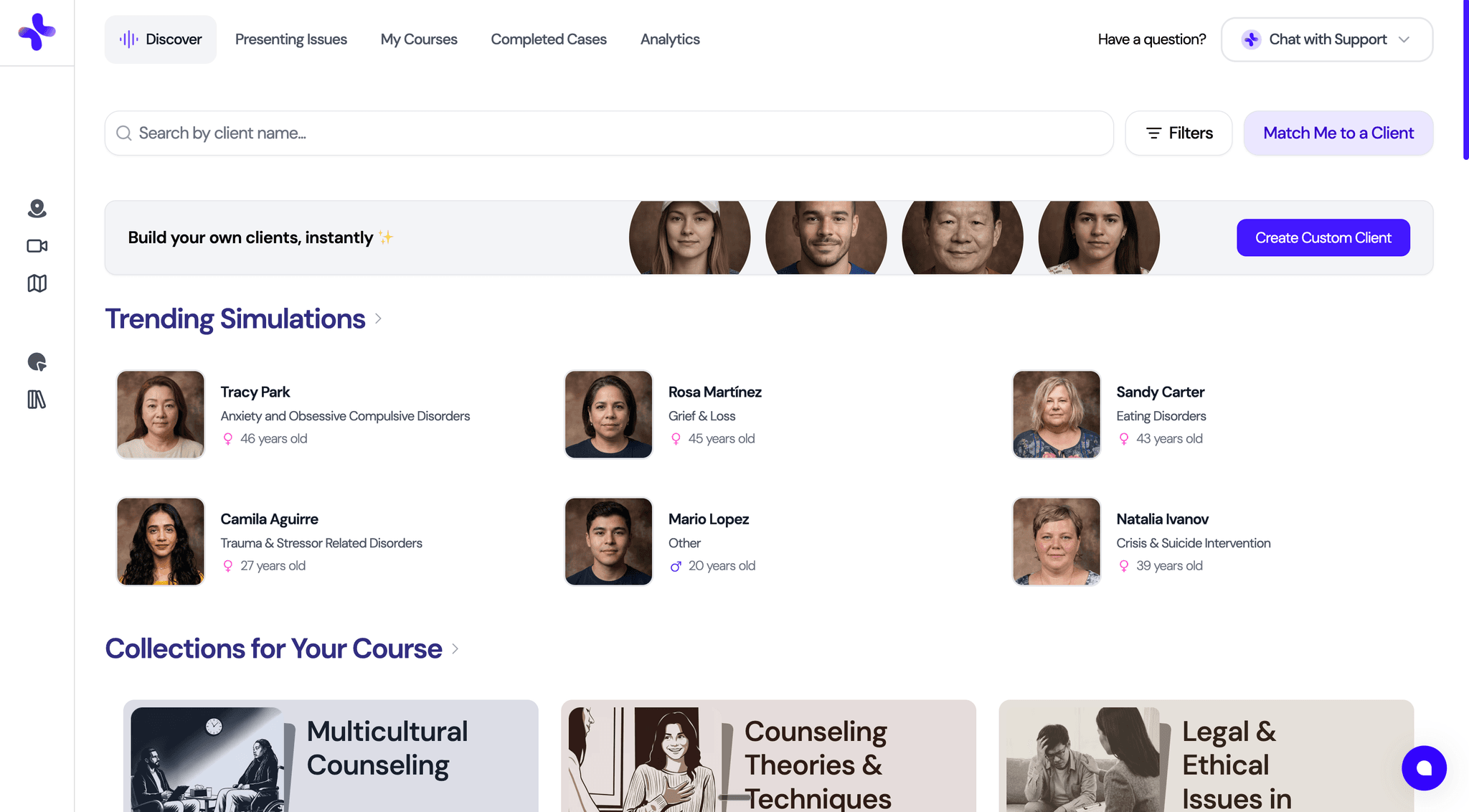
Go ahead and hover over the sidebar on the left, and you should see the following three options at the top. Those are the most important tabs as a site coordinator where you can manage all your field experience.
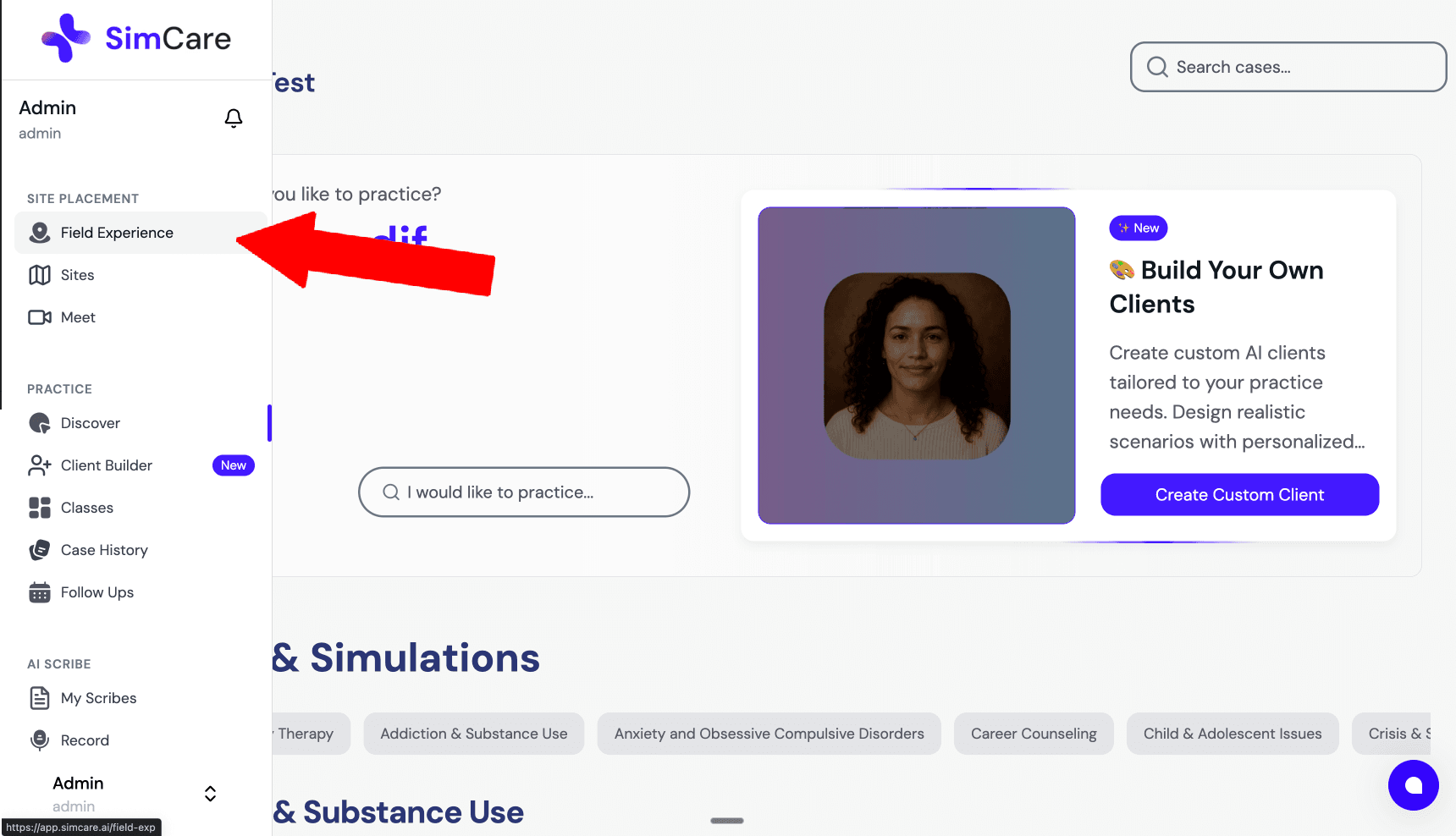
💡 Hint: If you or anyone else on the platform ever needs quick assistance, click the blue circle at the bottom right. Our systems will try to help you, and if it's not working, we will escalate it to a human being.
Here is what the field experience page should look like once you’re in:
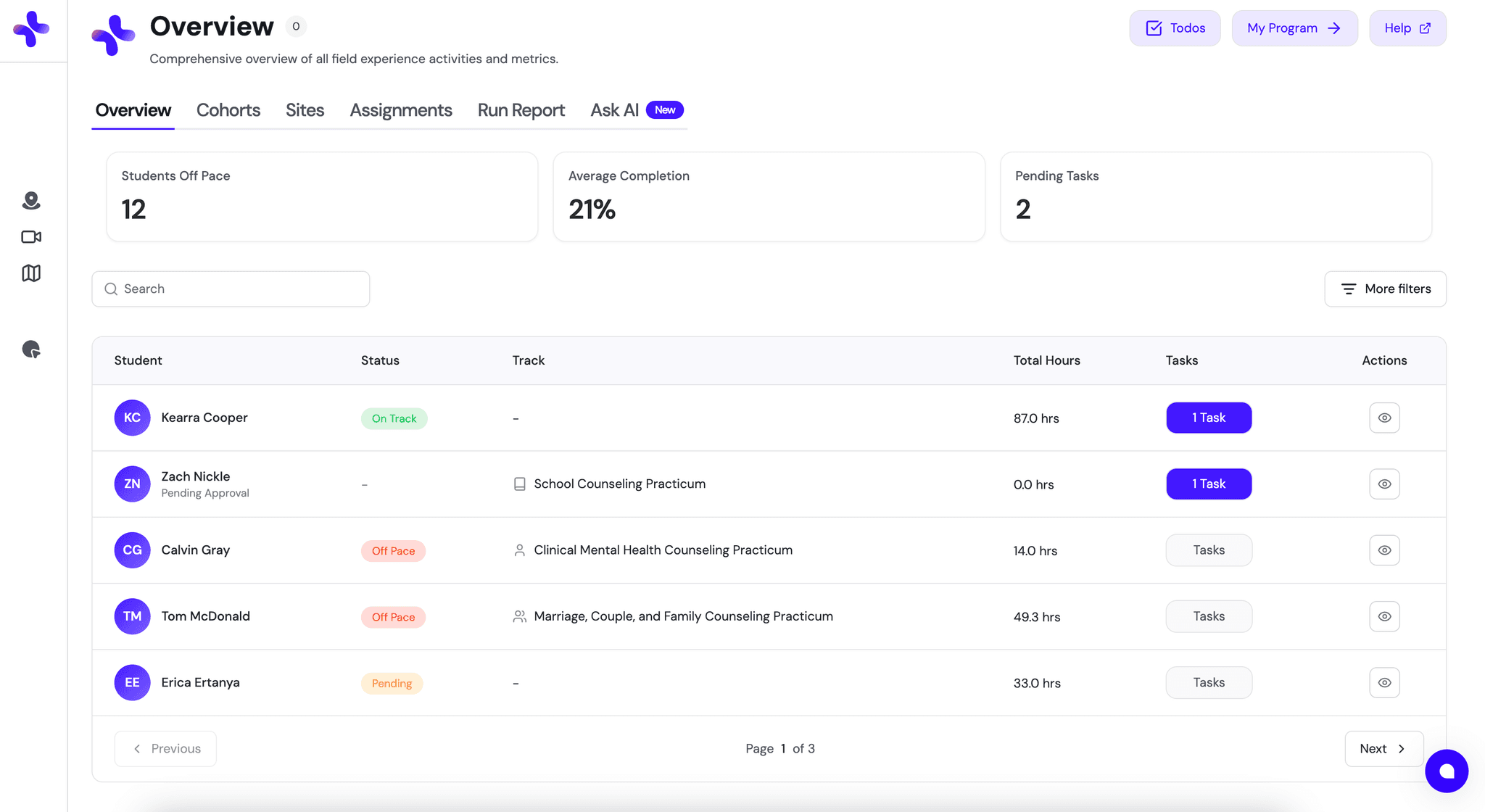
At the top you can see KPI cards giving you some quick data. Below that you can see an overview of all the students currently in the field experience platform as well as the ability to click into any pending tasks for those students.
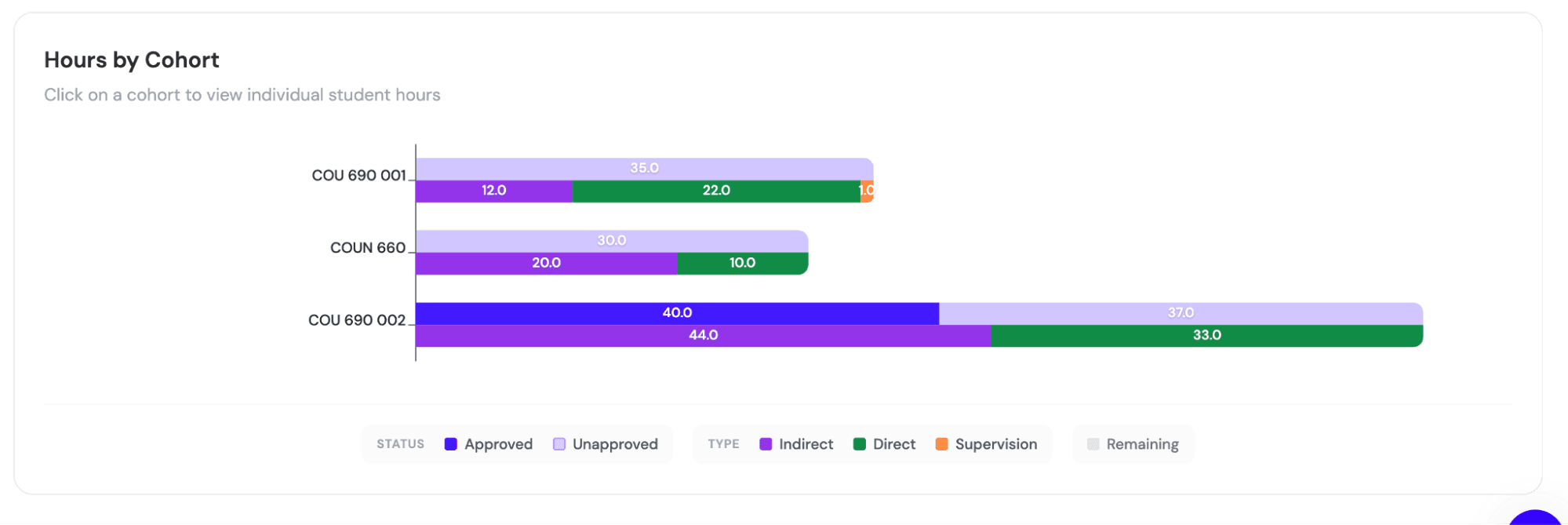
At the bottom you’ll see a graph showing the completion of hours per cohort. You can click into an individual cohort to see each student and their completion as well as their progress to completing their required hours.
For info on how to set hour requirements check out Customization Settings
For info on setting up cohort check out Set Up Cohorts
For any additional questions or customization requests, please reach out to tiko@simcare.ai.
🎯 Next Tutorial: Before making changes to your live program, test everything in your sandbox environment. Head to Testing FieldX with your Sandbox to learn how.