
Step 0.2: Customization Settings
There are a few settings that you may wish to review as you begin the customization of FieldX for your program.

To start, select My Program from the navigation menu.
Organization Settings
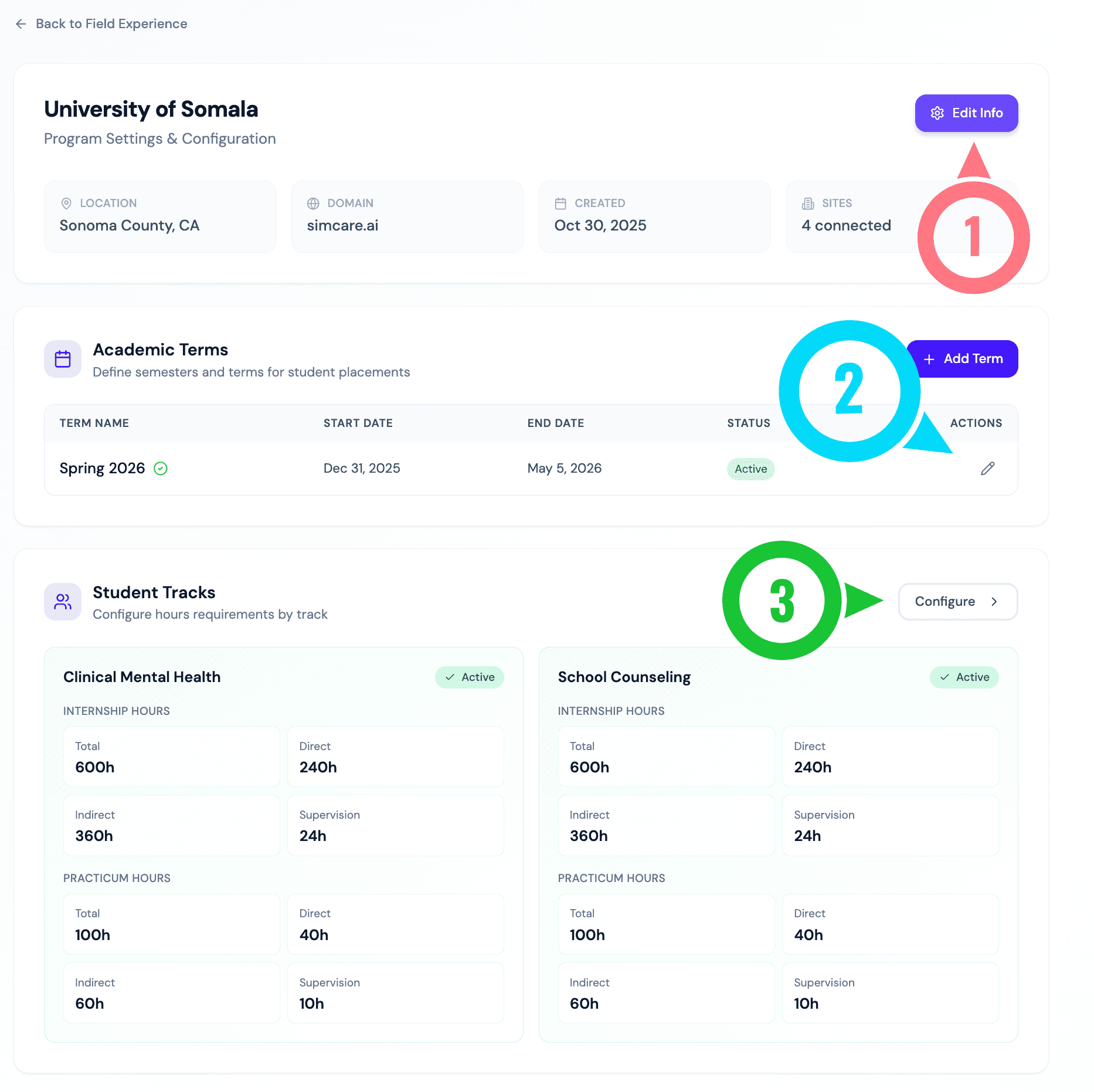
- Select Edit Info: Edit your program name, domain, or address.
- Academic Terms: This section is used to manage how tracking student completeness throughout a term is tracked. Here you can:
- Manage the start and end date of the current term
- Have multiple academic terms for different students
- Student Tracks: This section is used to manage hour requirements for students. You can:
- Enable and disable tracks (e.g., remote vs. in-person). This will determine what options students have to choose from during the clearance process.
- Input hour requirements for each user type.
Clearance/Application Process
Here you can customize what steps students must complete before they can begin logging hours. By default, students will be asked to:
- Select their track
- Review and sign standard agreements
- Select at least 1 site and supervisor (or request a placement)
- Upload a liability form
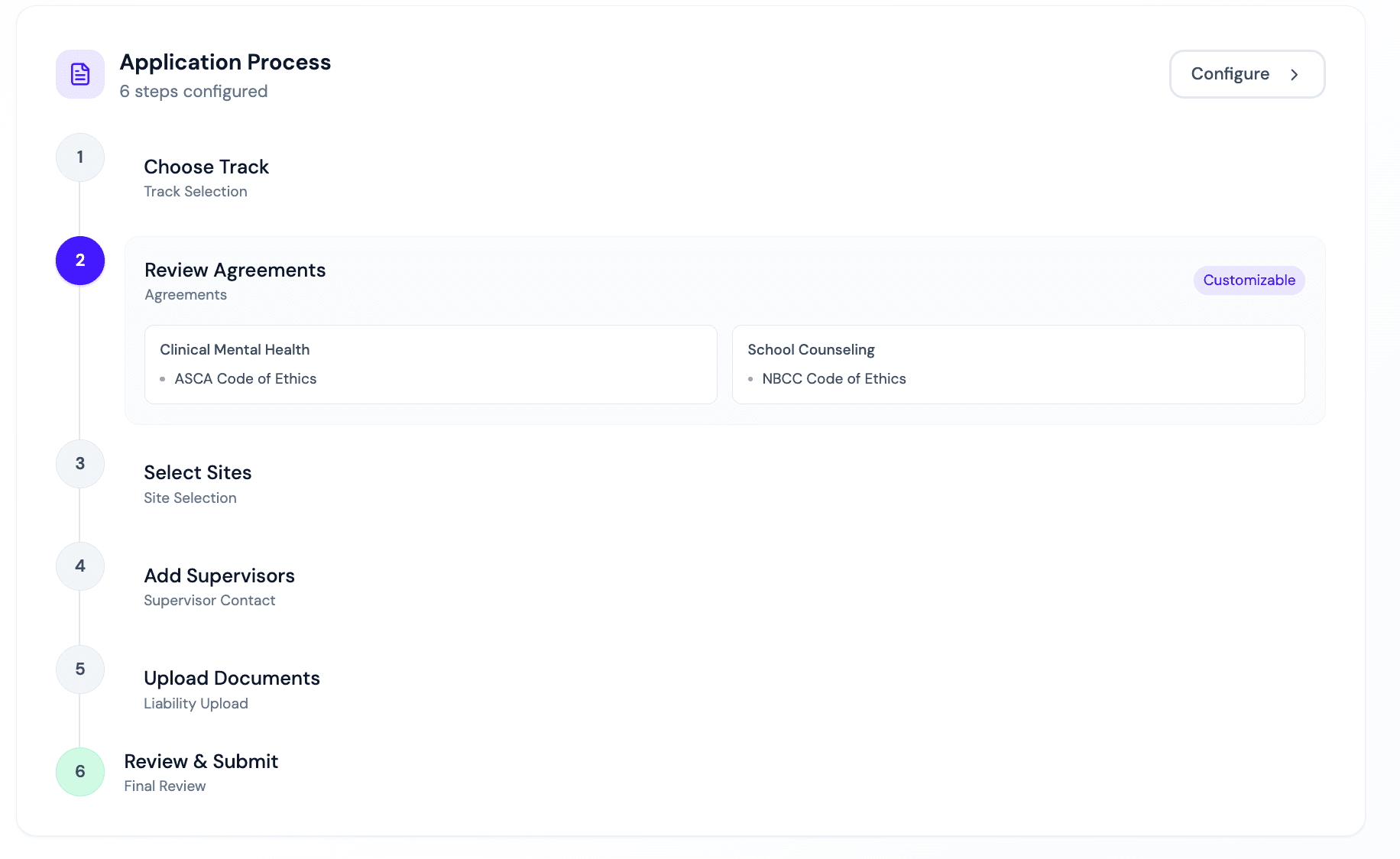
Some programs will choose to add or remove steps, such as:
- Requiring additional documents such as background checks, site affiliation forms, expiration dates, etc.
- Changing the required agreements to be signed.
- Not requiring a site to be selected initially.
The configuration view looks like:
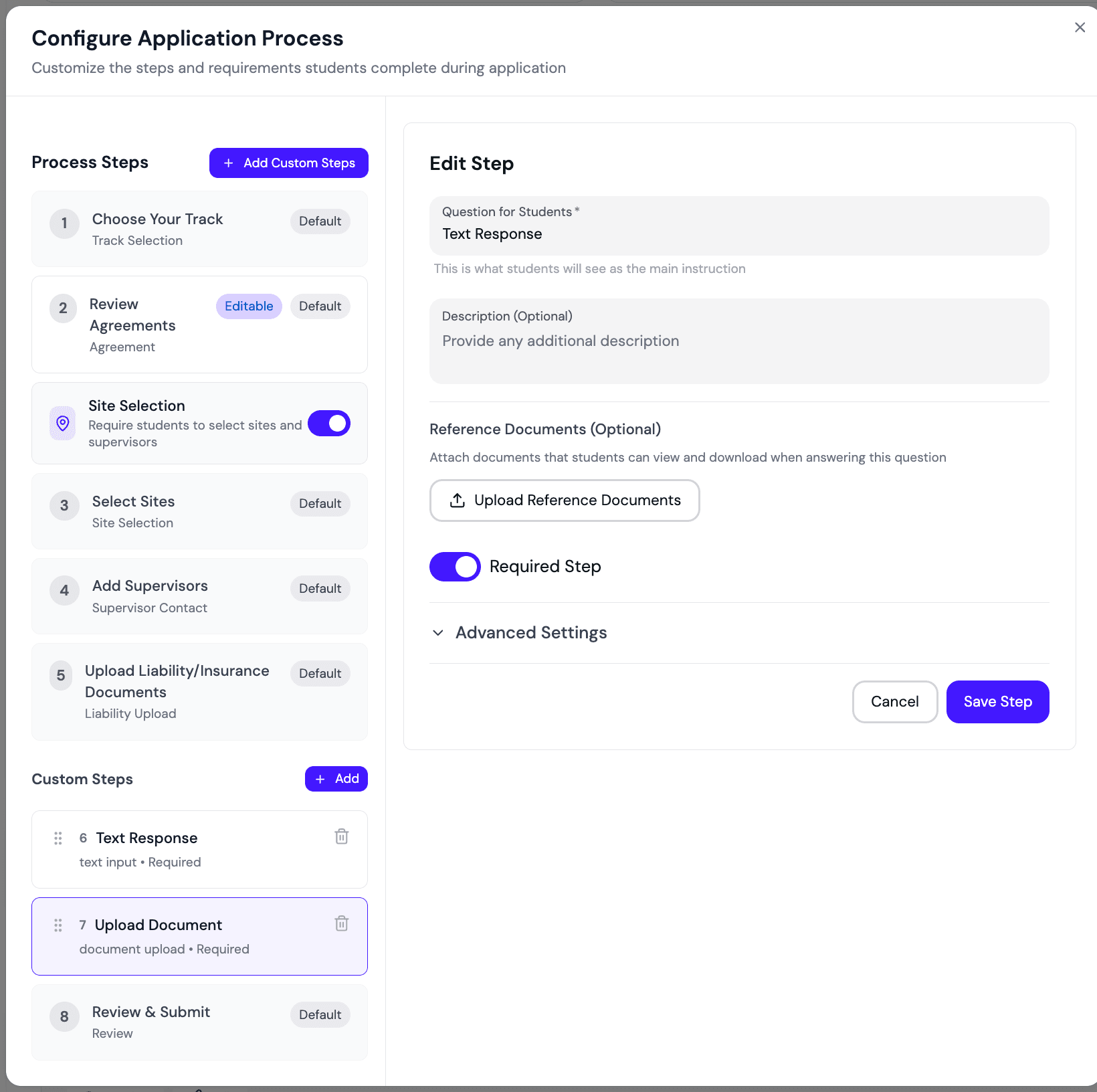
If there are any customizations that you would like that are not included here, please reach out to tiko@simcare.ai for additional support.
👥 Next Step: With your program configured, you're ready to add users. See Step 1: Adding/Managing Faculty & Studentsto start inviting faculty and students to FieldX.